http://dotnetfry.blogspot.in/2012/01/dot-net-interview-questions-for-3-years.html
Thursday, 4 October 2012


Recursive query in sqlserver 2008
--CBY-SANJAY KUMAR ACHARYA
--CDATE-04 OCTOBER,2012
--exec SP_BI_FetchSubhandleby 12051
create procedure SP_BI_FetchSubhandleby
@Handleby int
as
BEGIN
WITH SubhandleBy (em_emid, em_name,em_rprto,ds_desc)
AS
(
SELECT a.em_emid,a.em_name,a.em_rprto,b.ds_desc
FROM EMPMAST a
INNER JOIN DESGMAST b ON b.ds_dsid=a.em_dsid
WHERE a.em_emid=@Handleby AND a.em_status<>'D'
UNION ALL
-- Recursive member definition
SELECT a.em_emid,a.em_name,a.em_rprto,b.ds_desc
FROM EMPMAST a
INNER JOIN DESGMAST b ON b.ds_dsid=a.em_dsid
INNER JOIN SubhandleBy AS SB
ON a.em_rprto = SB.em_emid
WHERE a.em_status<>'D' AND a.em_emid<>a.em_rprto
)
SELECT DISTINCT
em_emid EmployeeId,
em_name+' ('+ CONVERT(VARCHAR,em_emid)+')',
em_rprto ReportTo
FROM
SubhandleBy WHERE em_emid NOT IN(1,2,3)
ORDER BY em_rprto
END
--CDATE-04 OCTOBER,2012
--exec SP_BI_FetchSubhandleby 12051
create procedure SP_BI_FetchSubhandleby
@Handleby int
as
BEGIN
WITH SubhandleBy (em_emid, em_name,em_rprto,ds_desc)
AS
(
SELECT a.em_emid,a.em_name,a.em_rprto,b.ds_desc
FROM EMPMAST a
INNER JOIN DESGMAST b ON b.ds_dsid=a.em_dsid
WHERE a.em_emid=@Handleby AND a.em_status<>'D'
UNION ALL
-- Recursive member definition
SELECT a.em_emid,a.em_name,a.em_rprto,b.ds_desc
FROM EMPMAST a
INNER JOIN DESGMAST b ON b.ds_dsid=a.em_dsid
INNER JOIN SubhandleBy AS SB
ON a.em_rprto = SB.em_emid
WHERE a.em_status<>'D' AND a.em_emid<>a.em_rprto
)
SELECT DISTINCT
em_emid EmployeeId,
em_name+' ('+ CONVERT(VARCHAR,em_emid)+')',
em_rprto ReportTo
FROM
SubhandleBy WHERE em_emid NOT IN(1,2,3)
ORDER BY em_rprto
END
Thursday, 27 September 2012
Query with WHERE and HAVING clause together
SELECT distinct(am_cuid) FROM AMCASCCONTRACT WHERE
dateadd(yy,convert(int,am_serviceyr),am_pickdt)>getdate()
group by am_cuid having COUNT(am_cuid) >1
dateadd(yy,convert(int,am_serviceyr),am_pickdt)>getdate()
group by am_cuid having COUNT(am_cuid) >1
Different Gridview operations
GridView Examples In ASP.NET 2.0 3.5 4.0 4.5

Merge GridView Headers

Search Records In GridView

GridView To PDF

ModalPopUpExtender

Export paging enabled GridView to pdf using iTextSharp

Delete Records In Gridview With CheckBox

LinkButton in GridView

Highlight GridView Row

Auto Number in GridView
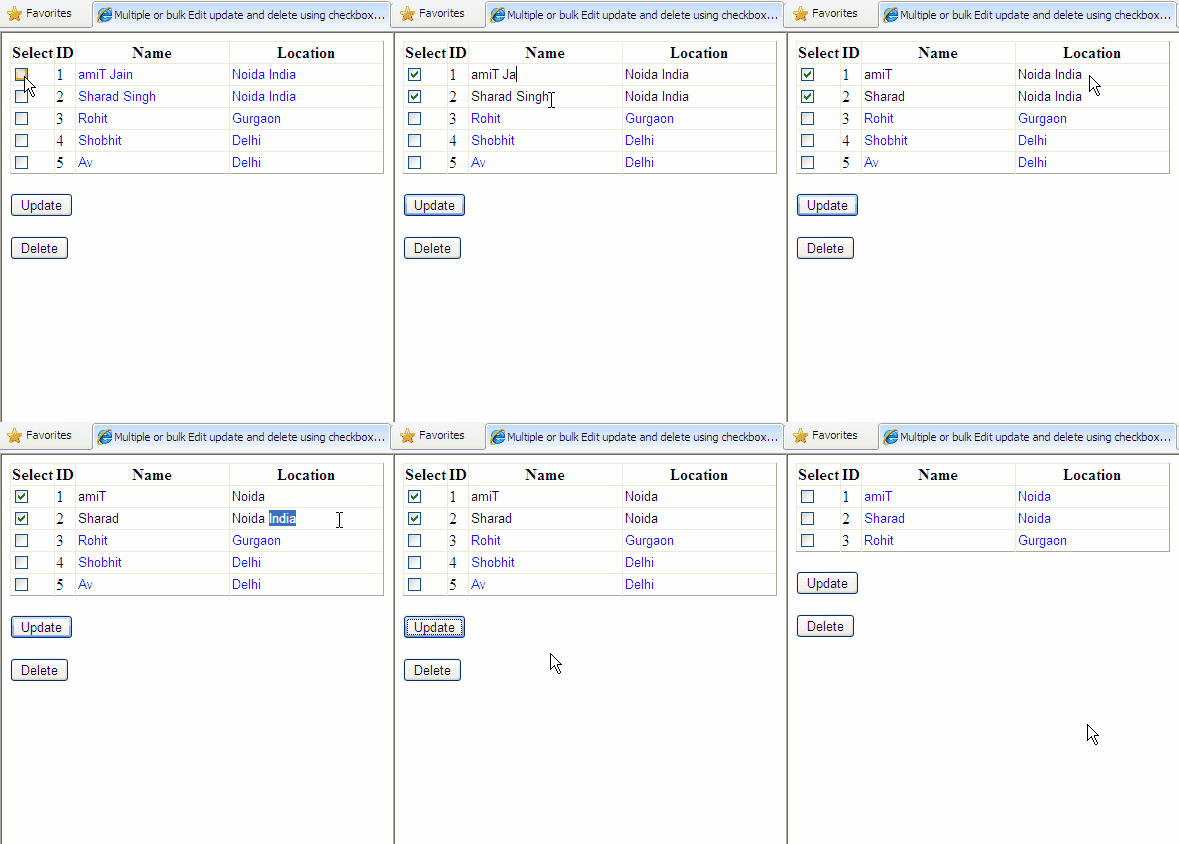
Edit Update Records In Gridview

Merge GridView Columns

Running Total In Gridview Footer

GridView with fixed headers

Images In GridView

NULL In GridView

Send GridView Row Data Using Hyperlink

Filtering GridView With Filter Expression
Tuesday, 18 September 2012
View pdf file in asp.net web page in pdf format
<html xmlns="http://www.w3.org/1999/xhtml">
<head>
<title>Untitled Page</title>
</head>
<body>
<iframe src="EXCEL/Introduction to WCF.pdf" type='application/pdf' width='949' height='600px' ></iframe>
</body>
</html>
Image-:

<head>
<title>Untitled Page</title>
</head>
<body>
<iframe src="EXCEL/Introduction to WCF.pdf" type='application/pdf' width='949' height='600px' ></iframe>
</body>
</html>
Image-:

Saturday, 1 September 2012
Step by Step Guide to Create a Setup for a Web Application
Deployment of an application is big issue in application software development. Normally you have to check each and every possible scenario before deploying your application so that your current deployment doesn't affect the existing application.
Through Microsoft Visual studio .NET we can do it in a better way.
In this article I would like to discuss about creating a setup project for a web application.
Let us discuss step-by-step process of creating installer for a web application. In this article I am mainly concentrating on Setup project. You can follow same steps for creating installer for any complicated project.
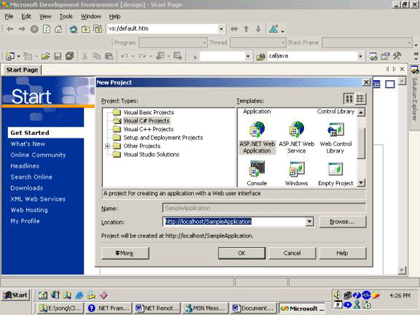
Step I:
Create a Simple web application using Microsoft Visual Studio .NET
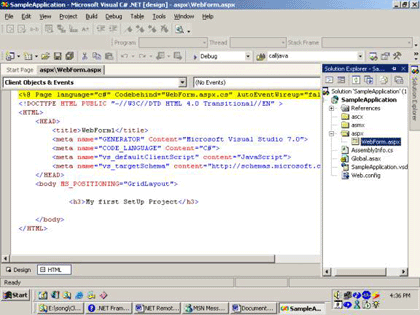
Step II:
Create a Simple WebForm in the web project. You can also add some more Webform or other control in this project by creating separate directory or in same directory.
Step III:
Select Setup and Deployment Projects and than select Web Setup Project also specify the Location and name of your project.
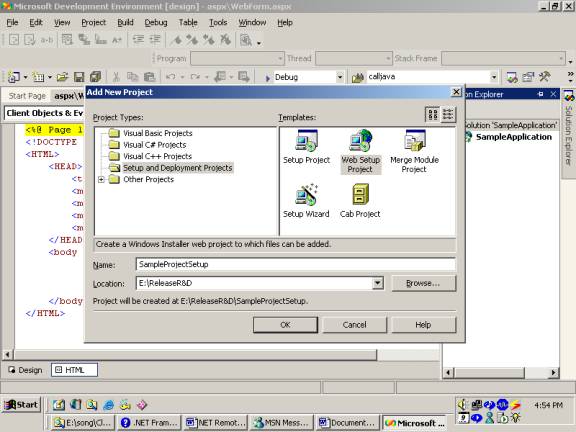
After creating setup project right click on project and than select view, it will show different possible operations, which you can perform with this setup project.
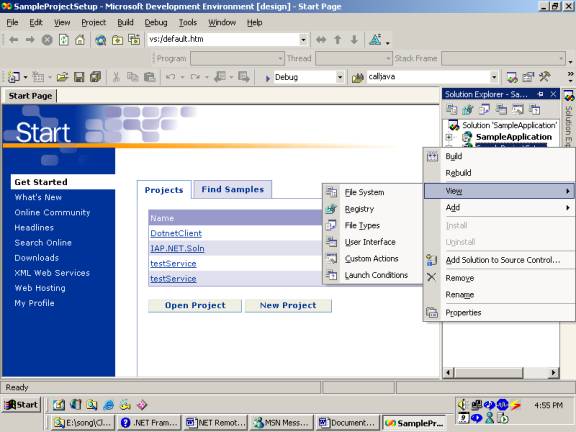
These options are
- File System
- Registry
- File Types
- User interfaces
- Custom Actions
- Launch conditions
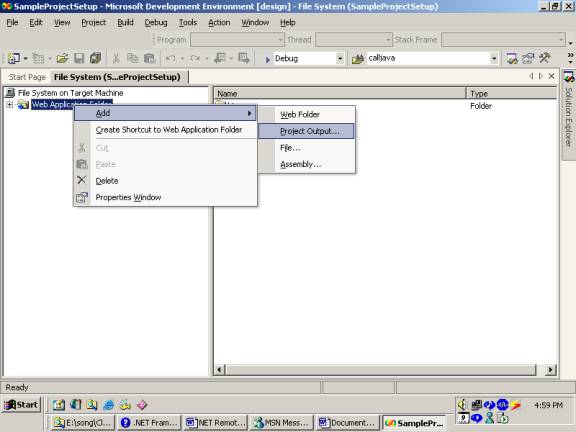
Select File system, it is use to create file system on the target machine. Through this you can specify what details you want to provide at the target machine.
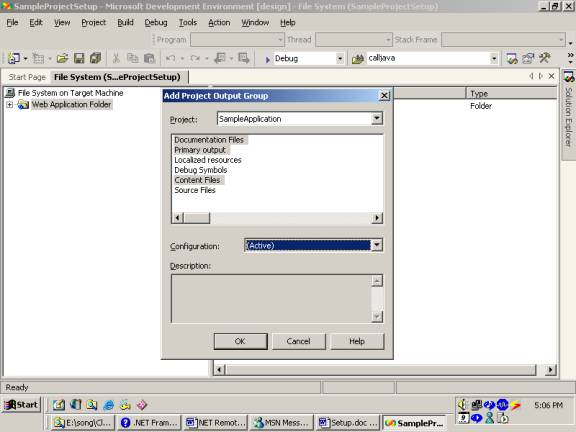
For providing right click on web application project than select add it will display certain option out of that select project output. After that select all details you want to supply for target machine.
Step V:
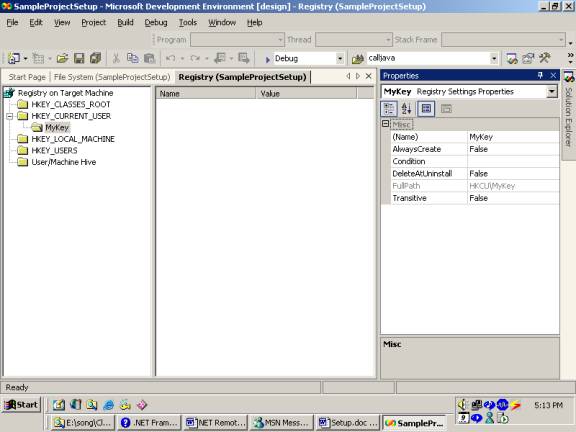
Second Selection is Registry Selection in this selection you can specify the dll, which you want to install at client registry. For that you have to create exact structure of registry in the registry folder structure and then you can specify the required dll for installation in that structure.
You can create new folder by right clicking on that folder and than select new key and define key Name. Each key is associated with a property window where you can specify which dll you want to install in the registry.
Step VI:
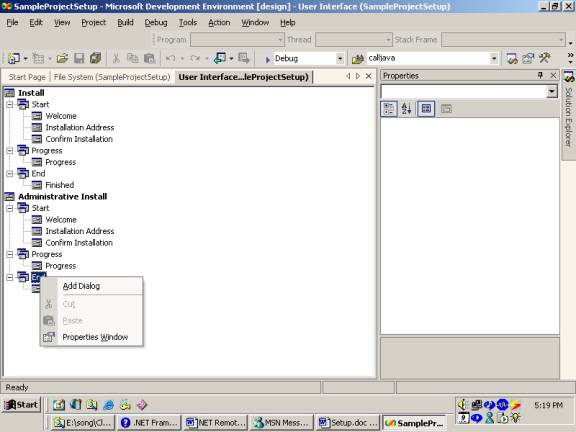
Select User Interface from the view in this selection you can specify what are the screens you want to display during installation process. You can change it, remove it or you can define new screen by right clicking on the screen header.
Step VIII:
Select Launch Conditions through this condition you can specify your criteria, which are prerequisite for your application installation.

Step IX:
Now final step is compile the setup project. After compilation you will notice that it has generated SampleProjectSetup.msi at applications bin/debug folder.
You can supply this msi the target machine, when you run this msi at target machine it will create a virtual directory as well as create same folder structure, which you have specified in File System. This installer will also install the specified those libraries in the registry which are specified in the Registry.
Now you can browse that application at the target machine in same way as you have done at your own machine.
Wednesday, 29 August 2012
How to create a user control and set its event and property.
DesignPage->
<%@ Control Language="C#" AutoEventWireup="true" CodeFile="EditableDropDown.ascx.cs" Inherits="EditableDropDown" %>
<link href="../HomeMaster.css" rel="stylesheet" type="text/css" />
<%@ Register Assembly="AjaxControlToolkit" Namespace="AjaxControlToolkit" TagPrefix="cc1" %>
<table width="100px">
<tr>
<td Width="100px">
<asp:DropDownList ID="DDlState" runat="server" width="231px" CssClass="ddlclass"
AutoPostBack="True" OnSelectedIndexChanged="DDlState_SelectedIndexChanged">
</asp:DropDownList>
<asp:TextBox ID="TxtState" runat="server" CssClass="ddlclass" width="212px" AutoPostBack="True" OnTextChanged="TxtState_TextChanged"></asp:TextBox>
<cc1:TextBoxWatermarkExtender ID="txtmark" TargetControlID="TxtState" WatermarkText="Please Select Remark" runat="server"></cc1:TextBoxWatermarkExtender>
<asp:RequiredFieldValidator ID="rfv_devremark" runat="server" ErrorMessage="Plese Select Closing Remark." ControlToValidate="DDlState" SetFocusOnError="true" Display="None" InitialValue="--Select--"></asp:RequiredFieldValidator>
</td>
</tr>
</table>
CodingPage-->
using System;
using System.Data;
public partial class EditableDropDown : System.Web.UI.UserControl
{
protected void Page_Load(object sender, EventArgs e)
{
}
public void BindData(DataSet ds)
{
DDlState.DataSource = ds;
DDlState.DataTextField = ds.Tables[0].Columns[0].ColumnName;
DDlState.DataValueField = ds.Tables[0].Columns[0].ColumnName;
DDlState.DataBind();
DDlState.Items.Insert(0, "--Select--");
}
public event System.EventHandler DDlSelectIndexChanged;
public event System.EventHandler TxtTextChanged;
public int DDlSelectedIndex
{
set { this.DDlState.SelectedIndex = value; }
get { return DDlState.SelectedIndex; }
}
public string DDlSelectedItem
{
get { return DDlState.SelectedItem.ToString(); }
}
public string DDlSelectedValue
{
get { return DDlState.SelectedValue.ToString(); }
}
public string TextBoxValue
{
set { this.TxtState.Text =value; }
get { return this.TxtState.Text; }
}
public bool TxtEnable
{
set { this.TxtState.Enabled = value; }
}
public bool DDlEnable
{
set { this.DDlState.Enabled = value; }
}
public string Validate
{
set { this.rfv_devremark.ValidationGroup = value; }
}
public DataSet BindDropdownlist
{
set
{
this.BindData(value);
}
}
protected virtual void OnSeletChanged(object sender)
{
if (this.DDlSelectIndexChanged != null)
this.DDlSelectIndexChanged(sender, new EventArgs());
}
protected virtual void OnTextboxTextChanged(object sender)
{
if (this.TxtTextChanged != null)
this.TxtTextChanged(sender, new EventArgs());
}
protected void DDlState_SelectedIndexChanged(object sender, EventArgs e)
{
OnSeletChanged(sender);
}
protected void TxtState_TextChanged(object sender, EventArgs e)
{
OnTextboxTextChanged(sender);
}
}
<%@ Control Language="C#" AutoEventWireup="true" CodeFile="EditableDropDown.ascx.cs" Inherits="EditableDropDown" %>
<link href="../HomeMaster.css" rel="stylesheet" type="text/css" />
<%@ Register Assembly="AjaxControlToolkit" Namespace="AjaxControlToolkit" TagPrefix="cc1" %>
<table width="100px">
<tr>
<td Width="100px">
<asp:DropDownList ID="DDlState" runat="server" width="231px" CssClass="ddlclass"
AutoPostBack="True" OnSelectedIndexChanged="DDlState_SelectedIndexChanged">
</asp:DropDownList>
<asp:TextBox ID="TxtState" runat="server" CssClass="ddlclass" width="212px" AutoPostBack="True" OnTextChanged="TxtState_TextChanged"></asp:TextBox>
<cc1:TextBoxWatermarkExtender ID="txtmark" TargetControlID="TxtState" WatermarkText="Please Select Remark" runat="server"></cc1:TextBoxWatermarkExtender>
<asp:RequiredFieldValidator ID="rfv_devremark" runat="server" ErrorMessage="Plese Select Closing Remark." ControlToValidate="DDlState" SetFocusOnError="true" Display="None" InitialValue="--Select--"></asp:RequiredFieldValidator>
</td>
</tr>
</table>
CodingPage-->
using System;
using System.Data;
public partial class EditableDropDown : System.Web.UI.UserControl
{
protected void Page_Load(object sender, EventArgs e)
{
}
public void BindData(DataSet ds)
{
DDlState.DataSource = ds;
DDlState.DataTextField = ds.Tables[0].Columns[0].ColumnName;
DDlState.DataValueField = ds.Tables[0].Columns[0].ColumnName;
DDlState.DataBind();
DDlState.Items.Insert(0, "--Select--");
}
public event System.EventHandler DDlSelectIndexChanged;
public event System.EventHandler TxtTextChanged;
public int DDlSelectedIndex
{
set { this.DDlState.SelectedIndex = value; }
get { return DDlState.SelectedIndex; }
}
public string DDlSelectedItem
{
get { return DDlState.SelectedItem.ToString(); }
}
public string DDlSelectedValue
{
get { return DDlState.SelectedValue.ToString(); }
}
public string TextBoxValue
{
set { this.TxtState.Text =value; }
get { return this.TxtState.Text; }
}
public bool TxtEnable
{
set { this.TxtState.Enabled = value; }
}
public bool DDlEnable
{
set { this.DDlState.Enabled = value; }
}
public string Validate
{
set { this.rfv_devremark.ValidationGroup = value; }
}
public DataSet BindDropdownlist
{
set
{
this.BindData(value);
}
}
protected virtual void OnSeletChanged(object sender)
{
if (this.DDlSelectIndexChanged != null)
this.DDlSelectIndexChanged(sender, new EventArgs());
}
protected virtual void OnTextboxTextChanged(object sender)
{
if (this.TxtTextChanged != null)
this.TxtTextChanged(sender, new EventArgs());
}
protected void DDlState_SelectedIndexChanged(object sender, EventArgs e)
{
OnSeletChanged(sender);
}
protected void TxtState_TextChanged(object sender, EventArgs e)
{
OnTextboxTextChanged(sender);
}
}
Subscribe to:
Posts (Atom)